TIMELAPSE RECORDING TOOL
OCTOBER 2026
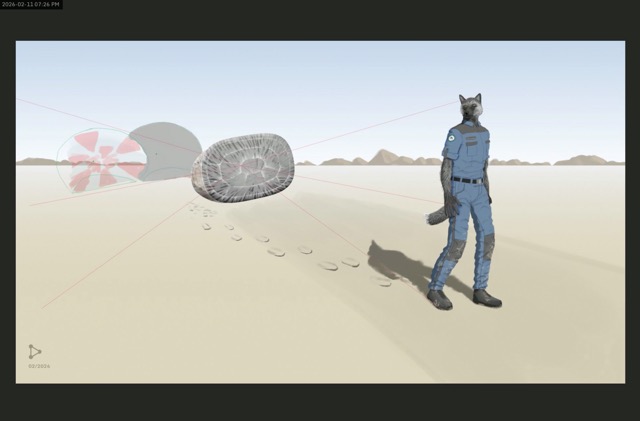

 Making concept art for my untitled sci-fi project.


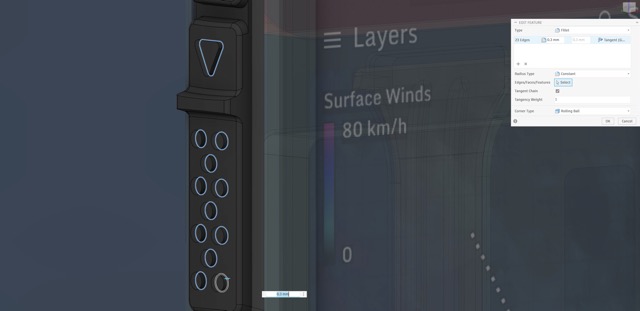
Reworking the design of a 3D asset in Autodesk Fusion.
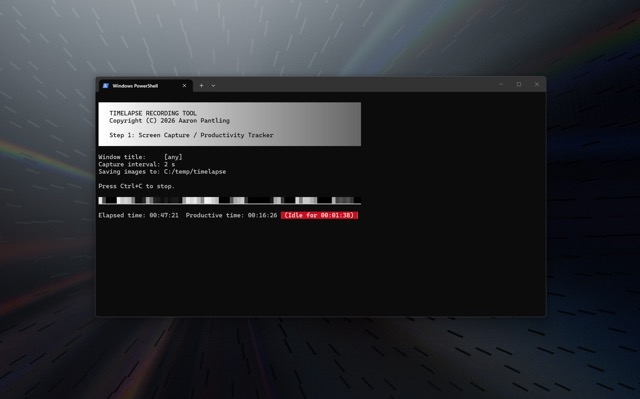
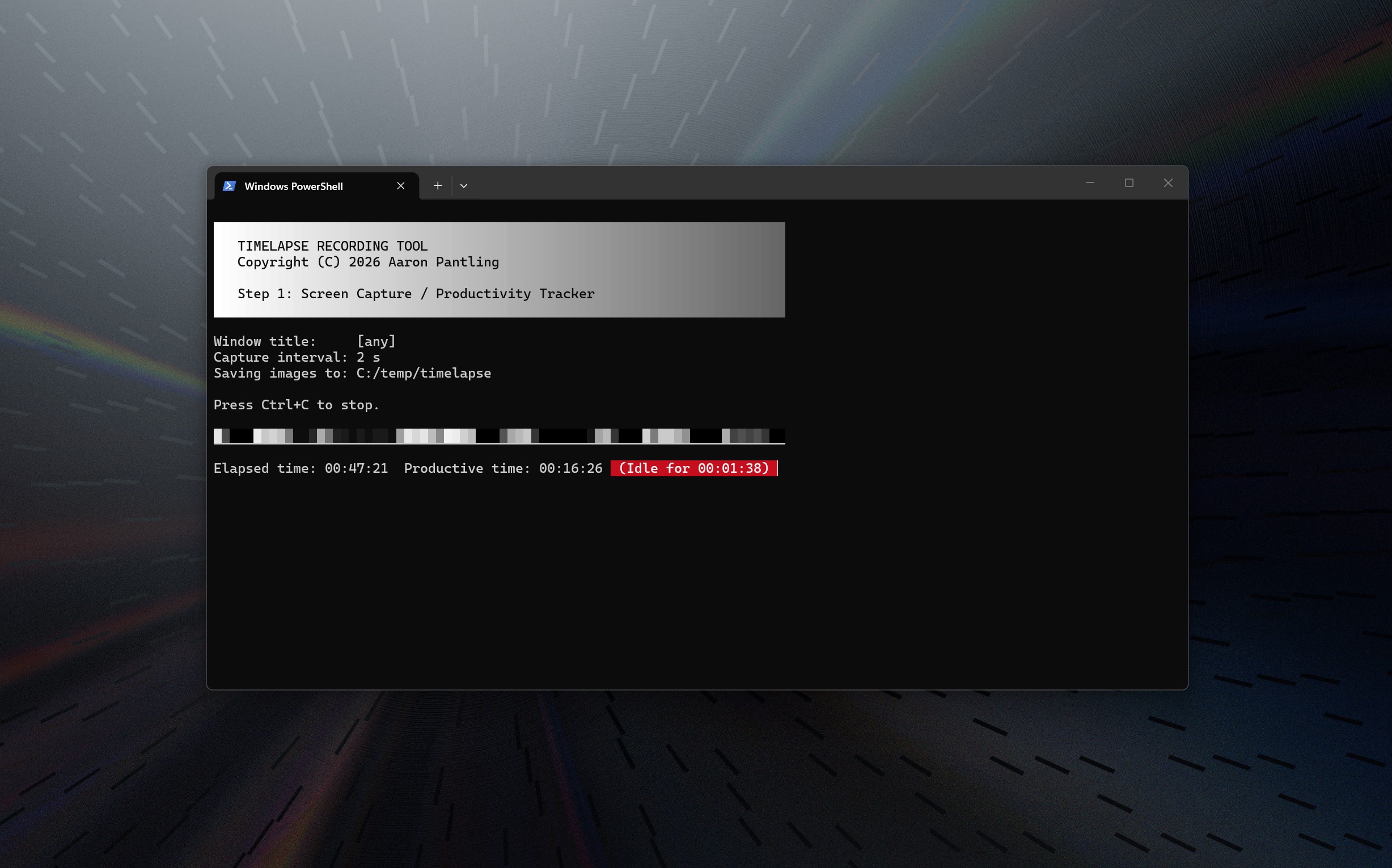
Capture screenshots while you work.
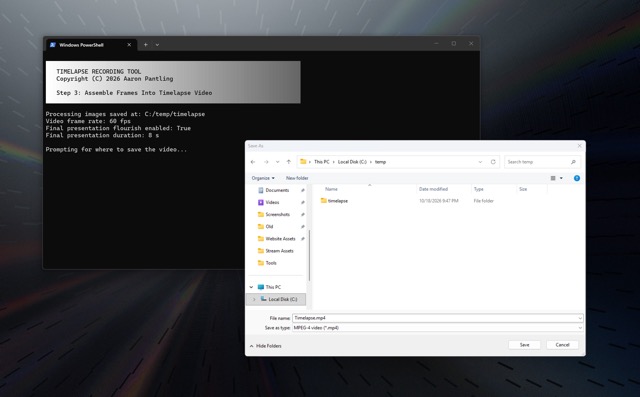
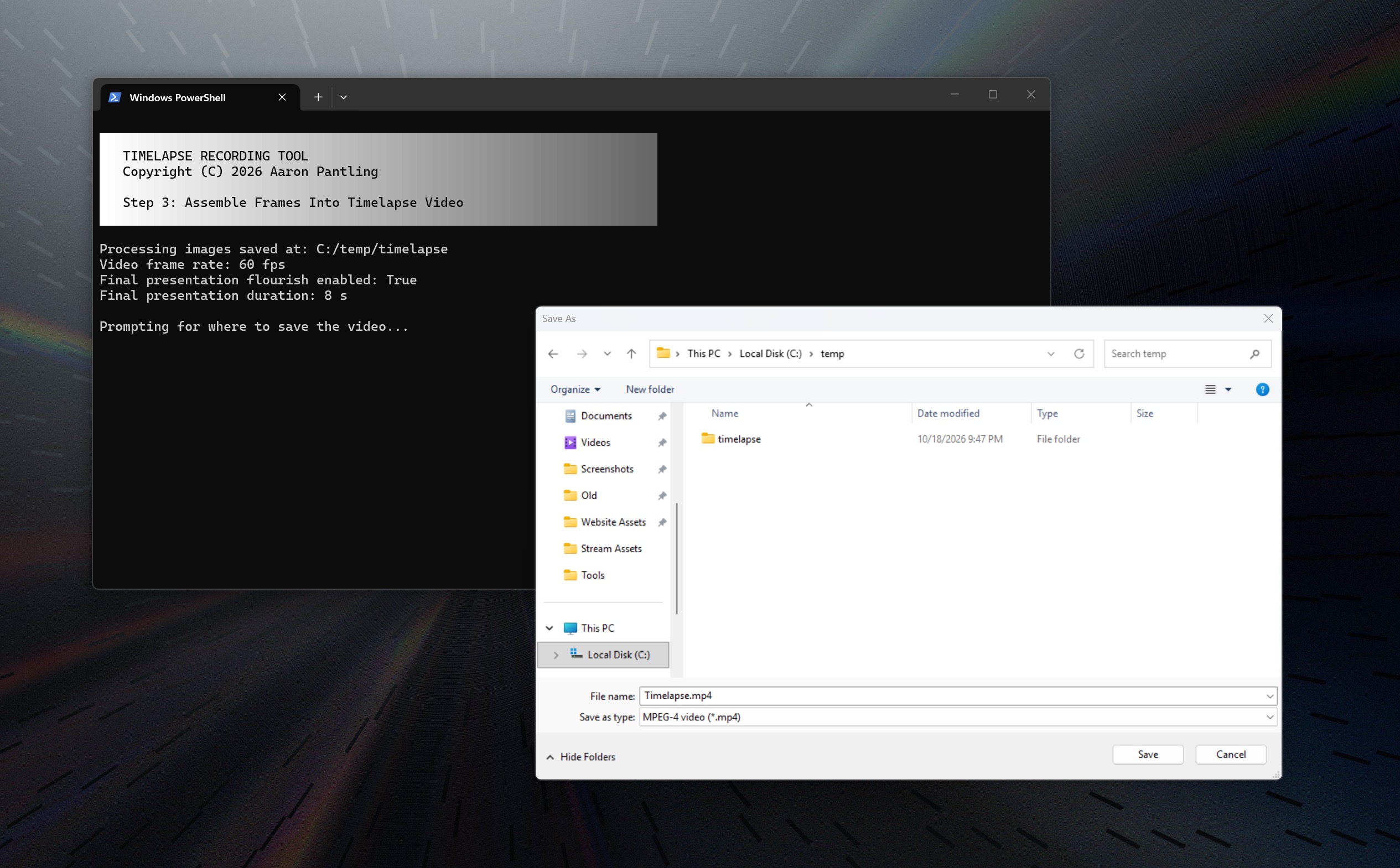
Export to video whenever you want.
Many popular artistic programs like Clip Studio Paint offer a built-in timelapse system that records the internal state of the program and exports a timelapse video showing your work from start to finish. This is valuable for documenting your work, giving your audience a behind-the-scenes view, proving the piece wasn't AI-generated, etc. But if you use software without those features, your options get a lot more limited. None of the third-party tools I looked at worked the way I wanted, and the basic approach of just recording my screen in OBS seemed really dumb, so in typical fashion for me, I just wrote my own thing.
This isn't the most polished, user-friendly tool out there, but that wasn't the goal. I wanted something to fit my needs, and I hope you'll find it useful too.
Hand-written in PowerShell, open source, released under the MIT license. Supports Windows only, and should work on any recent version of the operating system.
 Timelapse recording tool v0.1 (ZIP)
Features of my tool and the problems it was built to solve
Fundamentally, it works by saving screenshots to a temporary folder, so it's fully application-agnostic. Capture the full screen or any region of the screen, with any software underneath. You can even work between multiple applications while recording.
Modular and fully configurable. You choose exactly what kind of timelapse you want to create.
No need to record the entire timelapse in a single session. Just start the tool again and it'll continue adding screenshots to the folder.
It only saves images if the screen actually changed. If you get up from your computer or wind up doomscrolling on your other monitor, the tool won't record any of that dead space. This information is also used for a productivity-tracker feature. See on a graph how much of your session was actual work vs. idle time.
The capture-filtering behavior also allows you to specify a window title (or regular expression) that must be active in order for screenshots to be saved. This is useful if you only have one monitor, but doesn't change the way screenshots work. Anything in front of the active window (e.g. PureRef in always-on-top mode) will still be captured.
Optionally, embed the current time into the corner of each screenshot. This is especially useful if you want to document the progress of long-running work, where file timestamps aren't very useful.
You have control of the screenshots and the shared folder, so if you accidentally put something sensitive onscreen while recording, you can easily delete individual frames without upsetting the rest of the timelapse.
Special feature to protect the watchability of the finished timelapse. Unlike naive screen recorders that turn panning and zooming into harsh, frenetic movements, this tool uses fuzzy image comparison powered by FFmpeg to locate those discontinuities and reduce them to clean cuts.
Compile the timelapse into video at any time, and manually delete the captured frames when you're satisfied with the output.
Optionally, add a flourish and a Ken Burns-style slow zoom to the end of the video clip.
Small, self-contained, and private. The software consists of three PowerShell scripts, a configuration file written in JSON, and a font file for the optional timestamp feature. The tool requires FFmpeg installed on your system in order to run, but it has no other dependencies, works completely offline, does not require admin rights, and saves nothing except the screenshots. Feel free to inspect the scripts yourself if you wish.
First-time setup
1. Download and extract the ZIP file. Put the folder wherever you wish. You can even make multiple copies to keep different configurations.
2. Out of the box, it's set up to record the full screen of a 1080p monitor. If you want to review or adjust the configuration, open
3. Make sure the environment is ready. Right-click the Start menu, select "Terminal (Admin)", run the following commands, then close the admin window.
a. Install FFmpeg:
b. Enable script execution:
Using the tool
1. Get your work loaded up and ready to record.
2. Right-click the script
3. Leave the script running while you work. When you're done, press Ctrl+C to stop it.
4. (Optional) Run the script
5. Run the script
6. To protect against accidental data loss, you'll have to clean up the screenshots yourself. Don't remove them until you're sure you're happy with the timelapse.
All of these steps can be repeated at any time, non-destructively. You're in full control of all the content.
Configuration settings reference
| The location where files are saved. The folder will be created if it doesn't already exist. Use forward slashes ( / ). Backslashes will break the JSON. | |
| The region of the screen to capture, formatted as | |
| By default, screenshots will be taken when any window is active. If you set this to a window title or regular expression, screenshots will only be captured when a matching window is active. | |
| Approximate number of seconds between each screenshot capture. | |
| After this amount of idle time, you'll see a reminder appear in the script window. | |
| Set this to | |
| A .NET format specifier for the timestamp. Check Microsoft's documentation for details. | |
| Structural similarity index metric (SSIM) for comparing between frames. Measurements must exceed this value to be considered "smooth." Increasing this value will cause the remove-whiplash-frames script to discard more material. | |
| The number of frames in a row that must be smooth in order to be create a stable clip of footage. Increasing this value will result in fewer cuts and more material discarded between them. | |
| Frame rate of the assembled screenshots. This value multiplied with | |
| Enabled by default. Set this to | |
| Duration of the final presentation. Give the viewer plenty of time to appreciate your work. |

The script explicitly ignores Windows display scaling to avoid potential blurry images. The coordinates and sizes you need to enter might be scaled differently than you expect, and it might take a bit of trial and error to get it dialed in perfectly for your use case.
Support
If you try this tool out, I would love to hear your feedback! I'll do what I can to help with any issues, but since this isn't a commercial product, I can't make any promises of current or future support.